
This guide is for first-time users or for those na hindi sanay sa online or QR payments.
What You Need
- Smartphone with payment app (Maya, GCash, or mobile banking app)
- Internet connection
- Email access (doon ipapadala ang QR code)
How to Pay (Step-by-Step)
Step 1: Go to Our Online Store & Place Your Order
- Go to our online store: https://kzels.com
- Choose your products and proceed to Checkout.
- Select QR Code / E-wallet Payment.
- Click Place Order.
The QR code will be sent to your email after you place your order.
Step 2: Check Your Email
- Open the email you used during checkout.
- Look for the message from Kzels Bakes.
- You will see the QR code for payment.
If you can’t find it, please check your Spam or Promotions folder.
Step 3: Make the Payment
- Open your payment app on your phone.
If ONE phone lang ang gamit (most common):
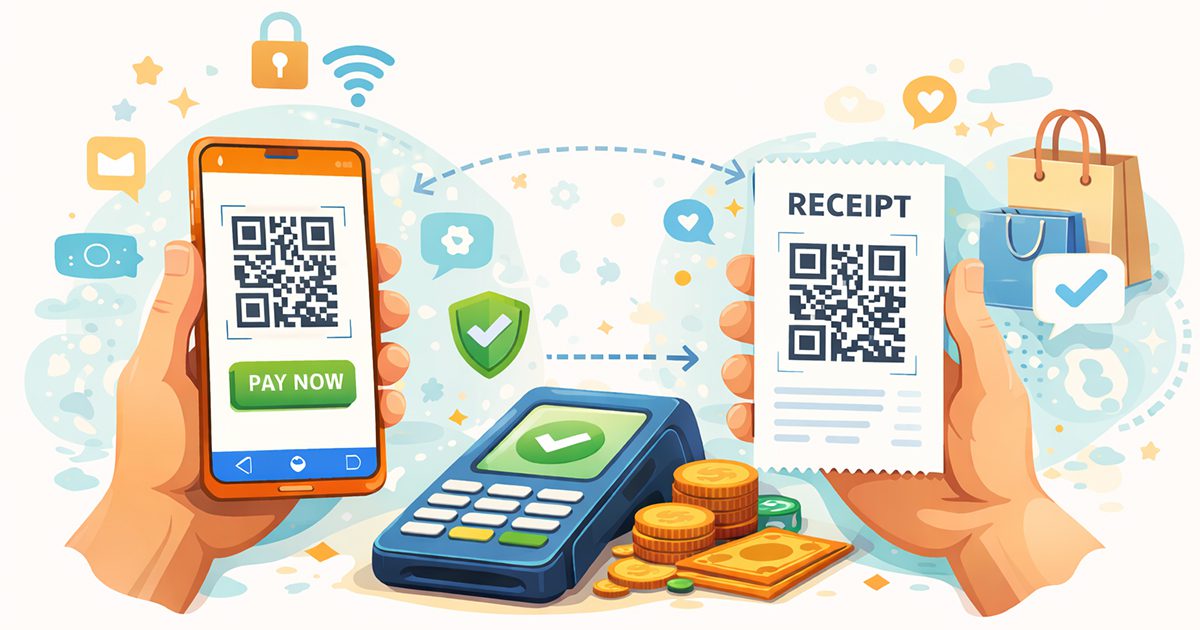
- I-download o i-save ang QR code from your email.
- Sa payment app, piliin ang Upload QR sa Gallery.
- Piliin ang saved QR code image para magbayad.
If may SECOND device (optional):
- Piliin ang Scan QR at itapat ang camera sa QR code.
Step 4: Confirm Payment
- Check if the amount is correct.
- Tap Pay / Confirm.
- Enter your PIN, fingerprint, or Face ID.
👉 You will see a payment confirmation once successful.
Step 5: Save Proof of Payment
- Take a screenshot of the successful payment.
- If requested, send it to:
- sales@kzels.com
- Kzel’s Bakes Facebook Messenger
For Orders via Facebook Messenger
Kung nag-order ka via Facebook Messenger, kami na po ang magse-send ng QR code sa chat.
- Pwede mong i-save ang QR code image at gamitin ang Upload QR sa Gallery
- O kaya i-scan ang QR code kung may second device
Quick Reminders
- Do not edit or crop the QR code.
- If scanning doesn’t work, use Upload QR.